
How a job comes together
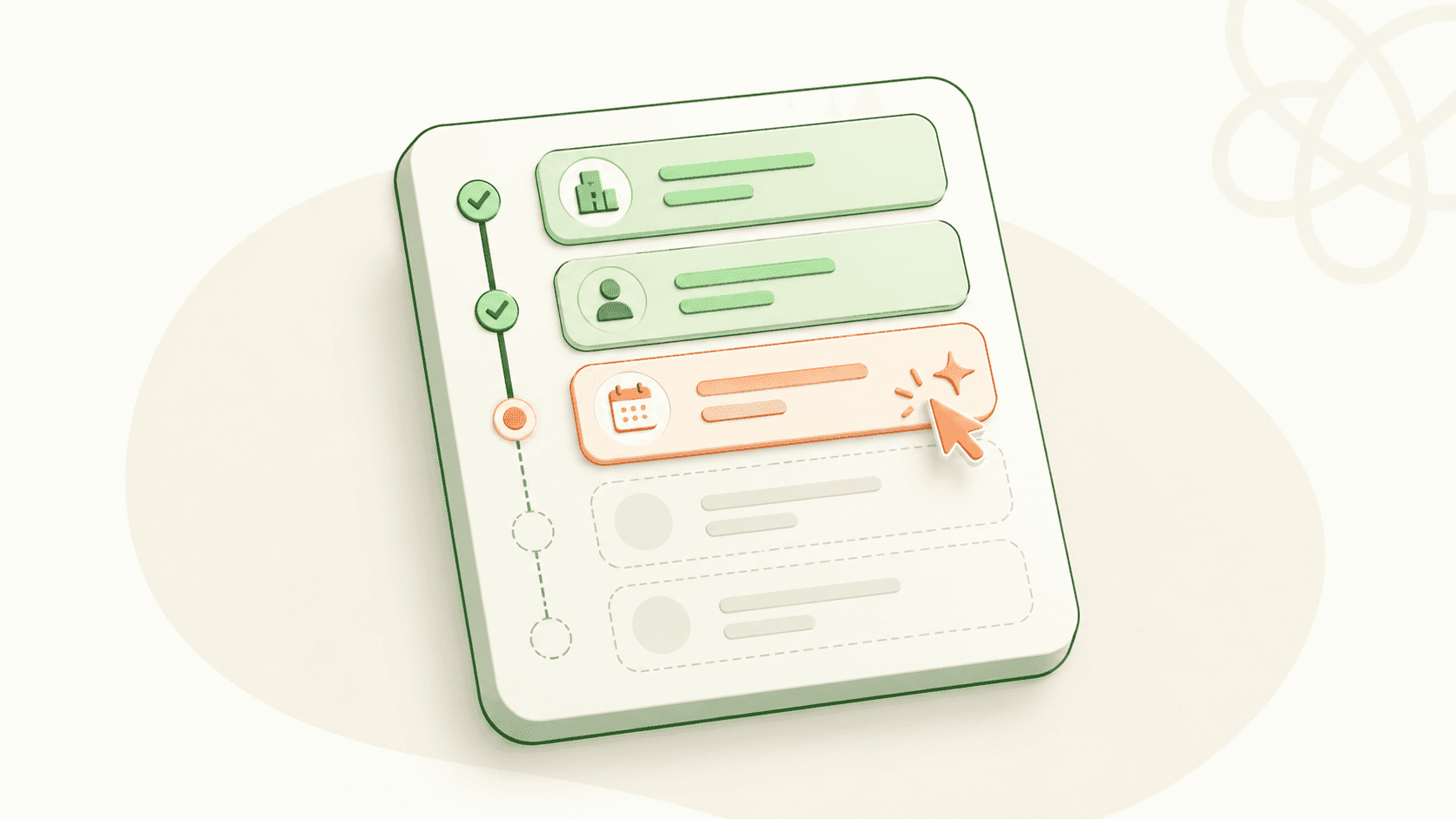
Every job in Talinty is created through a four-step wizard. The same wizard works whether you're hiring one engineer or sixty:
Job Details. Title, location, employment type, the description candidates read.
Core Criteria. What the AI scores candidates against.
Hiring Pipeline. The stages your candidates move through and what happens at each.
Review & Approval. A pre-publish check before the job goes live.
You can save the wizard as a draft at any step. Drafts live in Jobs → Drafts and pick up where you left off.

Starting a new job
From the Jobs section in the top navigation, click New Job in the top right. The wizard opens at the first step.
If you've used Talinty for similar roles before, you can also click Duplicate from existing and pick a previous job as a template. The Job Details, Core Criteria, and Pipeline carry over; you edit what's different about this hire.
Job Details: what to fill in
The first step asks for the basics. Everything candidates eventually see (the public job posting, the application confirmation email, the recruiter contact info) starts here.
Job title (required). The role as candidates will see it. Use the title that matches how someone would search for the role on a job board, not your internal job code.
Location (required). City, region, or Remote if the role is fully remote. If your role accepts hybrid or multi-location, you can add multiple locations. The default address comes from your company profile (Settings → Company); per-role locations override it.
Employment type (required). Full-time, part-time, contract, internship. Used for filtering on job boards and on your career page.
Salary range (optional but recommended). Min and max, in your default currency. Some regions require salary disclosure on job postings; even when optional, including it tends to improve applicant quality and reduce time wasted on misaligned expectations.
Department or team (optional). Used in reporting and on career pages that group roles by team.
Job description. The longest field, and the one candidates actually read. Two ways to fill it:
Write from scratch if you have a description ready.
Let the AI draft it from a short brief. Click Draft with AI, give the model a few sentences about the role (responsibilities, required experience, what makes the role interesting), and it produces a publish-ready description. Edit before publishing; the draft is a starting point, not a final. The AI-drafted description follows your company's voice and formatting conventions if you've set them in workspace settings. If you haven't, it uses sensible defaults.
Internal notes (optional). Not visible to candidates. Use this for context the team needs (the hiring manager's expectations, the reason this role opened, anything that helps your team interview well).
What locks in, what stays editable
Most Job Details fields are editable after the job is published. You can change the description, adjust the salary range, add a location. The change applies to the live posting and to any future applications.
Two things are harder to change cleanly once a job is live:
The job title. Editing it after candidates have applied means their application history references the old title; the public posting updates. Most teams avoid this unless the original title was wrong.
The department or team. If you change it, historical reporting on the role keeps the old grouping; future reports use the new one.
Save as draft if you're not sure. Drafts cost nothing and can be picked up later.
CONTINUE READING
Related articles
More ways to understand the product, the workflow, and the decisions behind Talinty.

| 3 Min Read
Creating your Talinty account
Sign up, verify your email, and set up your Talinty account in about five minutes.
Read article ->
| 3 Min Read
The onboarding wizard
A short setup flow that asks for the basics Talinty needs before you start hiring.
Read article ->

| 4 Min Read
Tour the Talinty dashboard
A walkthrough of the screen you'll spend most of your Talinty time in, and what each part is for.
Read article ->

| 4 Min Read
Navigate tabs and workspaces
Tabs let you look at the same role from different angles.
Read article ->

| 4 Min Read
Invite your first teammate
How to add someone to your Talinty workspace, what they'll see, and which role to give them.
Read article ->

| 4 Min Read
Anatomy of a candidate profile
Where everything about a candidate lives, and how to navigate the profile without getting lost.
Read article ->

| 4 Min Read
Review candidate AI insights
How to read the AI's view of a candidate, what each piece of it means, and when to trust it.
Read article ->
| 5 Min Read
Track candidate status and history
Where every action on a candidate is recorded, and how to read the trail.
Read article ->

| 3 Min Read
Add notes to a candidate profile
Where your team's judgment lives in the profile, alongside everything the AI sees.
Read article ->

| 4 Min Read
Move a candidate to another stage
How to move a candidate from one stage to another in simple terms.
Read article ->

| 4 Min Read
Disqualify or reject a candidate
How to end a candidate's journey in a way that's honest, recorded, and reversible if you need it to be.
Read article ->

| 3 Min Read
Invite and manage teammates
Add teammates to Talinty so they can collaborate on jobs, candidates, feedback, and hiring decisions.
Read article ->


Ready to hire with clarity instead of guessing?
Fifteen minutes. No commitment. A real walkthrough of Talinty in your context.
