What the profile is for
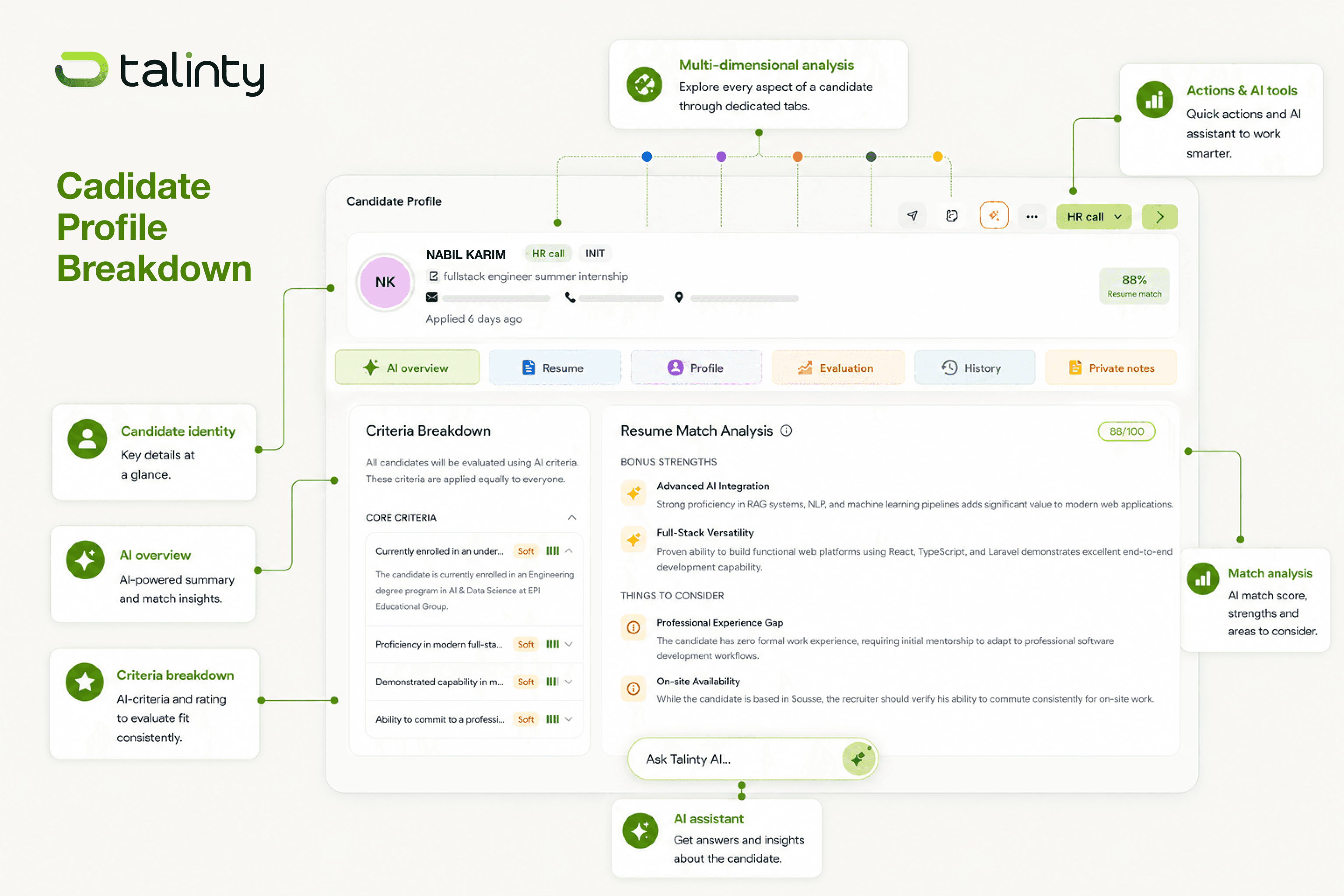
The candidate profile is the page Talinty opens when you click on a candidate from anywhere in the product. It's the consolidated view of one person across your entire process: the resume, the AI overview, your shareable notes, the team's feedback, the communications, the assessment results, and the history of every status change.
You'll spend more time in profiles than anywhere else in Talinty, and they're built to reward that. Everything you need to make a decision is there, in roughly the order you'd want it.
How you get there
Three main paths:
From the Candidate List on the dashboard, click any row.
From a role's pipeline view, click any candidate card.
From Talinty AI, ask "show me Sara Mansouri's profile" or paste a name in the global search.
Inside a profile, you can navigate to the next or previous candidate (in the current list or tab) without going back to the list. Use the arrow buttons at the top of the profile.
The main sections
Profile sections sit in a left or top navigation, depending on screen size. The standard set:

Summary. The top of the profile. Name, headline, current role, location, application source, and the dual AI scores (resume match, skill match %). This is the at-a-glance read.
AI Vetting Brief. The three-column structured analysis: Why they match, Bonus strengths, Things to consider. This is the section you read instead of the resume. How to read it in depth lives in Working with the AI.
Resume & Portfolio. The original resume, viewable inline as a PDF. Links to portfolios, GitHub, LinkedIn, or any other URL the candidate submitted. Detailed in Resumes and portfolios.
Application History. Every role this candidate has applied to (or been added to) inside your workspace, with dates and outcomes. Useful when a candidate has applied to multiple roles or been moved between pipelines.
Notes & Evaluations. Your team's running commentary: private notes, team-visible notes, scorecards from interviews, and structured evaluations tied to assessment stages. See Notes, evaluations, and scorecards.
Communications. The full conversation thread: emails sent to and received from the candidate, automated status updates, scheduling messages. See Communicating with candidates.
Assessments. Every test or async video interview the candidate has completed, with scores and recordings. Video transcripts are searchable from here.
Timeline. A chronological log of every change: stage moves, status updates, notes added, messages sent, assessments completed. The timeline answers "what happened with this candidate and when?"
The actions panel
Every profile has an actions panel (typically on the right side) that surfaces the moves you'd most likely want to make on this specific candidate, right now. Common actions:
Move to next stage.
Disqualify with a reason.
Send a message.
Schedule an interview.
Run an assessment.
Add to talent pool.
Add a note.
Compare with another candidate.
The panel is contextual. A candidate at the Application stage shows different actions than one at the Decision stage. Actions you can't take from your current role (because of permissions) are either hidden or shown but disabled, depending on the workspace settings.
Moving between candidates
You rarely look at a profile in isolation. Two patterns most teams use:

Sequential review. Open the first candidate and work through the list with the next and previous controls. The profile preserves your scroll position when you return to it later.
Side-by-side. From the actions panel, click New Tab and pick another candidate from your shortlist to drop them into the new customizable tab. Both profiles open in a new tab with their AI context. Built for the final-two decision.
CONTINUE READING
Related articles
More ways to understand the product, the workflow, and the decisions behind Talinty.

| 3 Min Read
Creating your Talinty account
Sign up, verify your email, and set up your Talinty account in about five minutes.
Read article ->
| 3 Min Read
The onboarding wizard
A short setup flow that asks for the basics Talinty needs before you start hiring.
Read article ->

| 4 Min Read
Tour the Talinty dashboard
A walkthrough of the screen you'll spend most of your Talinty time in, and what each part is for.
Read article ->

| 4 Min Read
Navigate tabs and workspaces
Tabs let you look at the same role from different angles.
Read article ->

| 4 Min Read
Invite your first teammate
How to add someone to your Talinty workspace, what they'll see, and which role to give them.
Read article ->

| 4 Min Read
Anatomy of a candidate profile
Where everything about a candidate lives, and how to navigate the profile without getting lost.
Read article ->

| 4 Min Read
Review candidate AI insights
How to read the AI's view of a candidate, what each piece of it means, and when to trust it.
Read article ->
| 5 Min Read
Track candidate status and history
Where every action on a candidate is recorded, and how to read the trail.
Read article ->

| 3 Min Read
Add notes to a candidate profile
Where your team's judgment lives in the profile, alongside everything the AI sees.
Read article ->

| 4 Min Read
Move a candidate to another stage
How to move a candidate from one stage to another in simple terms.
Read article ->

| 4 Min Read
Disqualify or reject a candidate
How to end a candidate's journey in a way that's honest, recorded, and reversible if you need it to be.
Read article ->

| 3 Min Read
Invite and manage teammates
Add teammates to Talinty so they can collaborate on jobs, candidates, feedback, and hiring decisions.
Read article ->


Ready to hire with clarity instead of guessing?
Fifteen minutes. No commitment. A real walkthrough of Talinty in your context.
