
The default pipeline
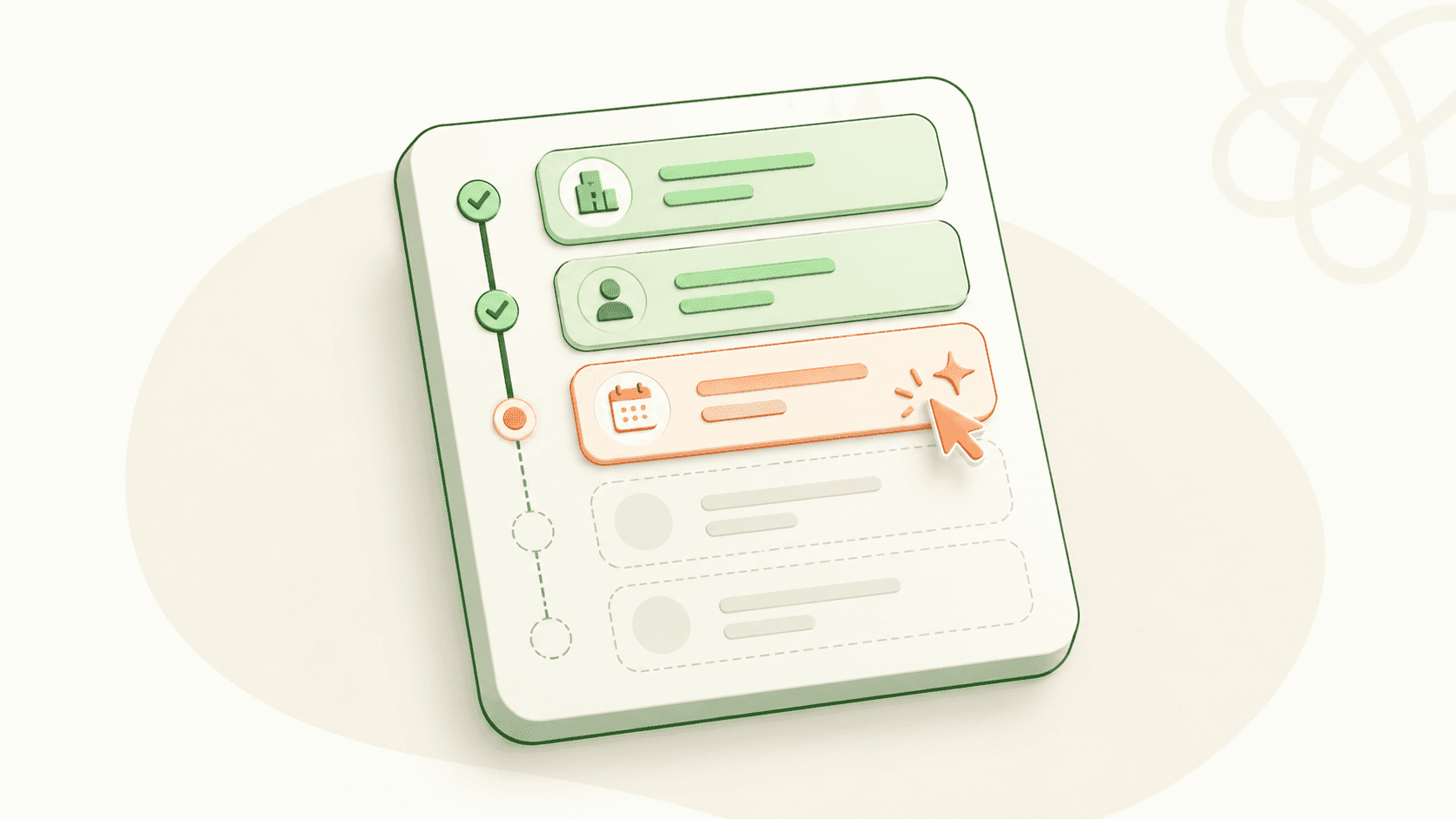
Every new job starts with a default four-stage pipeline:
Application. Where new applicants land.
Online Screening. Initial review and AI scoring.
Interview. One or more interview rounds.
Decision. Final review, offer, hired or rejected.
This baseline works for most roles. You can use it as-is, or customize for your specific process. The wizard asks you which.
Customizing stages
In the Hiring Pipeline step, you'll see a list of stages with controls to:
Add a stage. Click Add Stage between any two existing stages or at the end. Name it and set its behavior.
Rename a stage. Click the name and edit. Existing candidates in that stage stay where they are; only the label changes.
Reorder stages. Drag to rearrange. Affects new candidates; existing candidates stay in their current stage by name (so if "Interview" becomes the third stage instead of the second, candidates already in Interview stay in Interview).
Remove a stage. Only if no candidates are in it. The system blocks removal if it would orphan anyone.
Most teams add stages for Phone Screen (between Application and Online Screening), and Offer Extended (between Interview and Decision). Some teams add Final Round for executive interviews. The pattern: name stages after what happens in them, not after how they fit into a generic funnel.
Stage settings
Each stage has its own settings panel. Click the stage to expand it.
Required scorecards. Choose whether a scorecard must be submitted before a candidate can move to the next stage. Useful for interview stages where you want interviewer feedback captured before the candidate advances.
Approvals on exit. Whether moving a candidate out of this stage requires approval from a second teammate. Maps to the approval flow described in Use approval flows for sensitive actions. Most teams enable this for late-stage moves (Offer, Hired) and skip it for early stages.
Automation on enter or exit. Trigger actions automatically:
Send a message to the candidate when they enter the stage (for example, the welcome message when entering Online Screening).
Send an assessment when they enter (covered below).
Notify a teammate when they exit (for example, notify the hiring manager when a candidate hits the Interview stage).
Stage-specific permissions. Restrict which Hiring Managers can move candidates in or out of this stage. Useful for keeping junior teammates from advancing candidates to Offer without review.
Attaching assessments to stages
Assessments are how you verify what the resume claims. They attach to specific stages of the pipeline and fire either automatically (when a candidate enters the stage) or manually (when you click Send Assessment on the candidate profile).
The assessment library. Talinty includes 150+ technical and soft-skill assessments out of the box. Filter by skill area (engineering, sales, design, finance), seniority level, and language. Preview any assessment before attaching it.
Custom assessments. If the default library doesn't fit, build your own. Custom assessments support multiple-choice questions, short-answer questions, code challenges (auto-graded), and short essay prompts (manually graded or AI-summarized).
Async video interviews. A special kind of assessment. You write 3 to 6 questions; candidates record themselves answering on their own time. Recordings are transcribed automatically (the transcripts are searchable) and stored in the candidate profile. Async video replaces the first scheduling-heavy interview round for most teams.
Anti-cheating controls. Each assessment supports configurable anti-cheating measures: time limits, copy-paste blocking, tab-switching detection, randomized question order, webcam monitoring for proctored assessments. Configure these per assessment in the assessment library.
When to attach assessments
A typical pattern for a senior engineering role:
Online Screening stage attaches a 30-minute technical screening assessment (multiple choice plus one code challenge).
Take-Home Assignment stage attaches a 4-hour project (custom assessment, manually reviewed).
Interview stage attaches an async video interview with three behavioral questions.
For a sales role, you might instead attach a sales aptitude assessment at Online Screening, a role-play async video at Interview, and a written prospecting plan at Take-Home Assignment.
The principle: each assessment should test something you can't reliably get from the resume or the interview. Don't attach assessments out of habit; attach them where they answer a real question.
Pipeline design patterns
Three patterns that come up over and over:
The lean pipeline. Application → Online Screening → Interview → Decision. Four stages. Used for high-volume roles where speed matters and one assessment is enough. Most early-career roles work this way.
The deep pipeline. Application → Screening → Take-Home → Tech Interview → Team Interview → Reference Check → Offer → Hired. Eight stages. Used for senior engineering roles, leadership hires, or any role where the cost of a bad hire is high.
The high-volume pipeline. Application → Auto-Screening (with assessment) → Auto-Pass to Interview → Decision. Five stages, three automated. Used for contact-center or operational roles where the funnel needs to move 100+ candidates per week.
Pick the pattern closest to your situation; adjust from there.
CONTINUE READING
Related articles
More ways to understand the product, the workflow, and the decisions behind Talinty.

| 3 Min Read
Creating your Talinty account
Sign up, verify your email, and set up your Talinty account in about five minutes.
Read article ->
| 3 Min Read
The onboarding wizard
A short setup flow that asks for the basics Talinty needs before you start hiring.
Read article ->

| 4 Min Read
Tour the Talinty dashboard
A walkthrough of the screen you'll spend most of your Talinty time in, and what each part is for.
Read article ->

| 4 Min Read
Navigate tabs and workspaces
Tabs let you look at the same role from different angles.
Read article ->

| 4 Min Read
Invite your first teammate
How to add someone to your Talinty workspace, what they'll see, and which role to give them.
Read article ->

| 4 Min Read
Anatomy of a candidate profile
Where everything about a candidate lives, and how to navigate the profile without getting lost.
Read article ->

| 4 Min Read
Review candidate AI insights
How to read the AI's view of a candidate, what each piece of it means, and when to trust it.
Read article ->
| 5 Min Read
Track candidate status and history
Where every action on a candidate is recorded, and how to read the trail.
Read article ->

| 3 Min Read
Add notes to a candidate profile
Where your team's judgment lives in the profile, alongside everything the AI sees.
Read article ->

| 4 Min Read
Move a candidate to another stage
How to move a candidate from one stage to another in simple terms.
Read article ->

| 4 Min Read
Disqualify or reject a candidate
How to end a candidate's journey in a way that's honest, recorded, and reversible if you need it to be.
Read article ->

| 3 Min Read
Invite and manage teammates
Add teammates to Talinty so they can collaborate on jobs, candidates, feedback, and hiring decisions.
Read article ->


Ready to hire with clarity instead of guessing?
Fifteen minutes. No commitment. A real walkthrough of Talinty in your context.
