
Publishing in one click
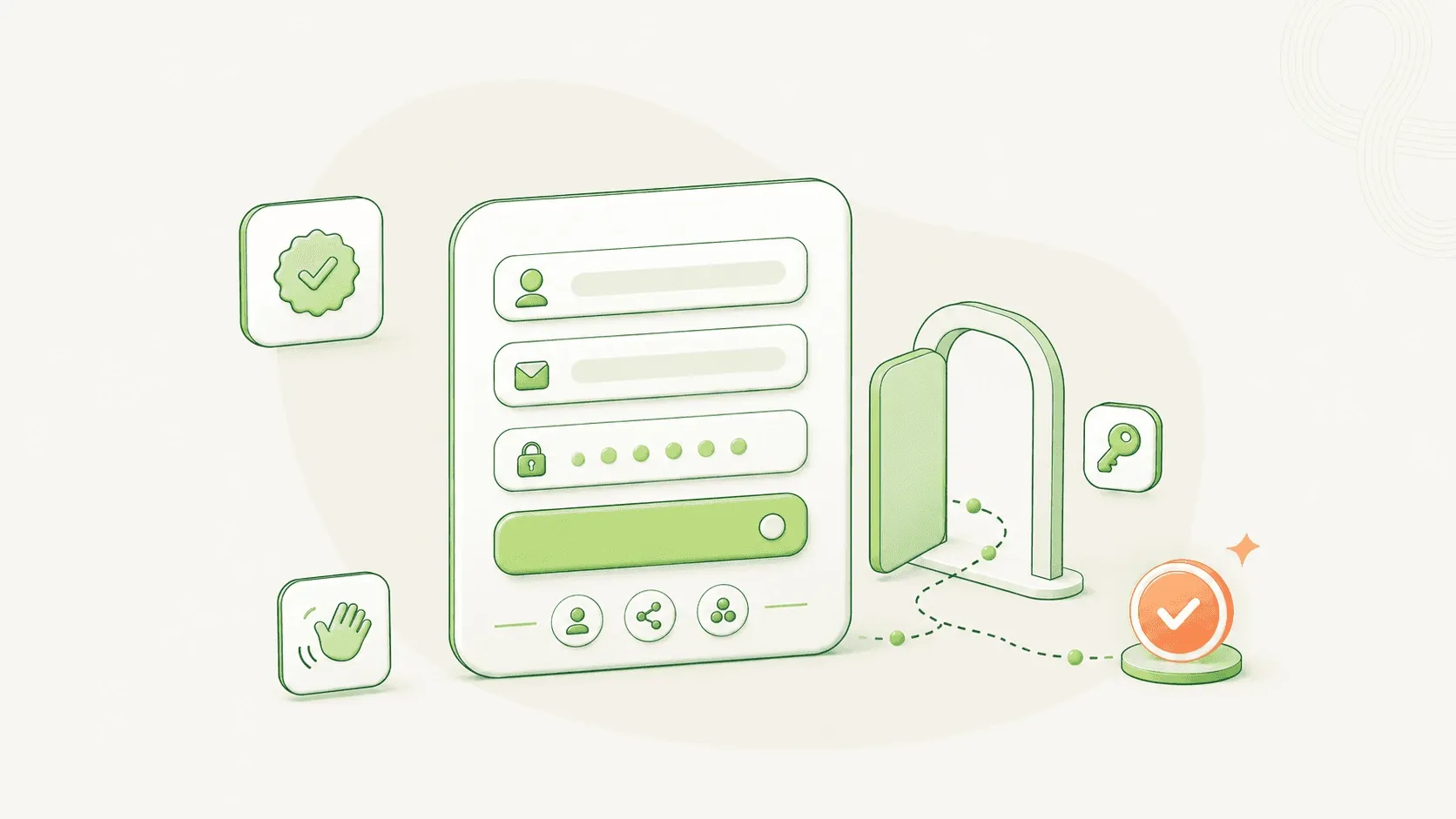
When you click Publish at the end of the wizard, several things happen in order:
- The job goes live on your career page at careers.yoursubdomain.talinty.com/jobs/[job-slug].
- Distribution kicks off to any integrated job boards (LinkedIn, Indeed, and others you've connected).
- The per-job Talinty email address is activated (covered in the next article).
- The pipeline begins accepting applications.
The whole sequence takes a few seconds. The job's status in your Jobs list updates to Published.
Where the job appears
- Your career page. The branded page that lives on your subdomain (configured during onboarding, editable in Settings → Career Page). The job appears in the list of open roles, sorted by post date or by your custom order if you've set one.
- Job boards. Any job boards you've configured under Settings → Integrations receive the new job automatically. The posting on each board includes a link back to the application form on your career page; candidates apply on your domain, not on the board.
- Direct link. The job has its own URL, shareable directly. Use it in outbound emails, on social media, in referral campaigns.
What candidates see
A candidate landing on the job posting sees:
- The job title and company name.
- A summary section (location, employment type, salary range if you included it).
- The full description.
- An Apply Now button that opens the application form.
The application form is customizable per job (in the Career Page settings) but typically includes:
- Name, email, phone.
- Resume upload (required).
- Cover letter or portfolio link (optional).
- A few qualifying questions if you've added them (work authorization, salary expectation, notice period, and so on).
The form is mobile-friendly. About 60% of applications come from mobile devices for most teams, so this matters.
Career page customization
Most of the career page styling is set workspace-wide and applies to all jobs. You can customize per-job:
- Featured image or banner for this specific role.
- Custom intro paragraph that appears above the job description.
- Team-specific branding if the role is for a department with its own visual identity.
Workspace-level customization (logo, colors, fonts, overall layout) lives in Settings → Career Page and is covered in the Account & support category.
Editing a published job
Most fields on a published job remain editable after publication. From the job's detail page, click Edit. Changes go live immediately:
- The career page posting updates.
- Connected job boards receive an update (the timing depends on each board's refresh interval; LinkedIn updates within minutes, smaller boards can take hours).
- Existing candidates' AI scores re-compute if criteria changed.
Some edits trigger a re-approval cycle if your workspace requires job approval. Major changes (criteria changes that significantly affect scoring, salary range adjustments outside the original band) usually require re-approval; minor edits (typo fixes, description tweaks) don't.
Unpublishing without closing
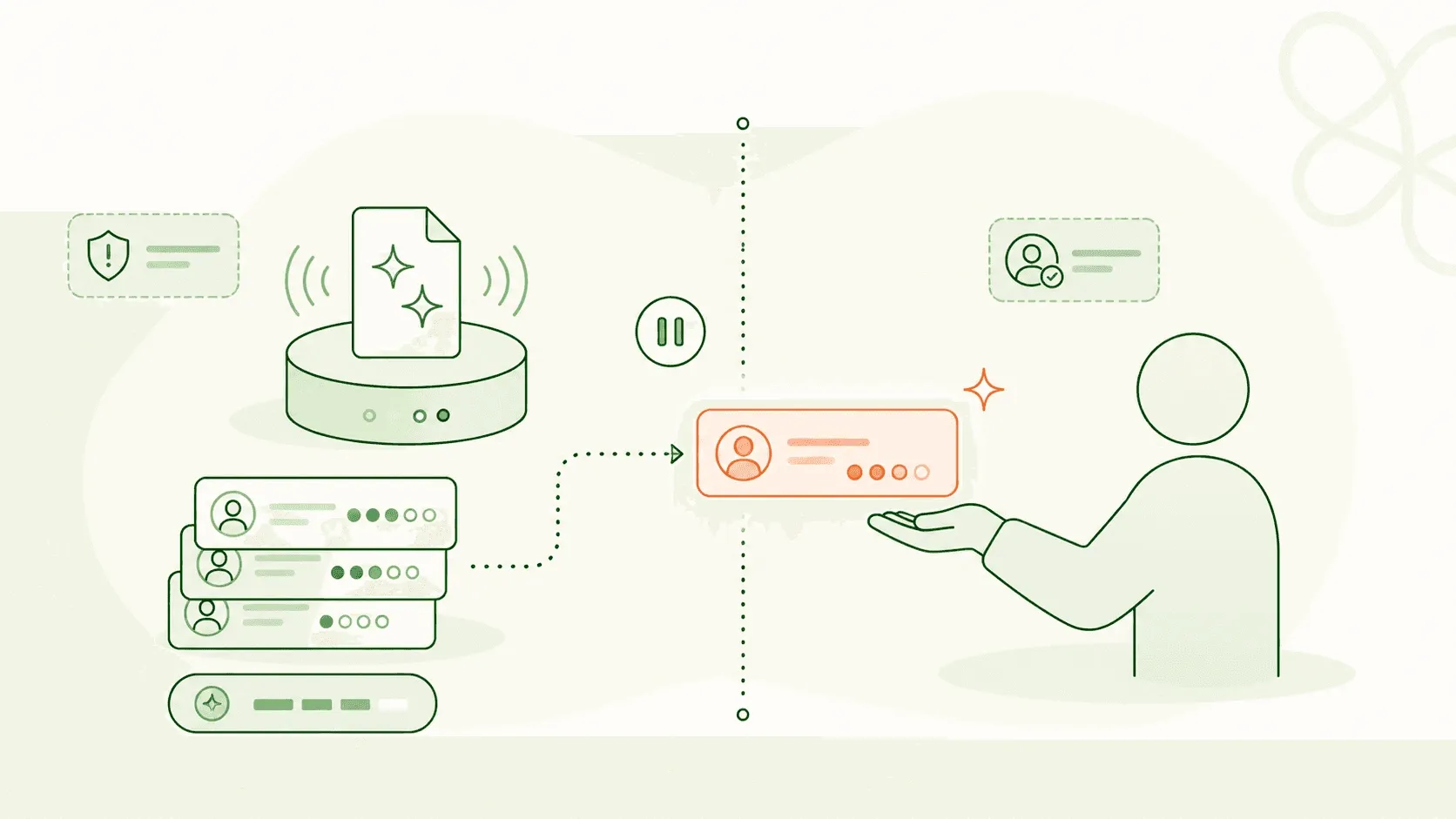
If you need to temporarily remove a job from your career page without closing it (a hiring freeze, an internal restructure, a candidate you're considering before posting publicly), use Unpublish instead of Close.
Unpublishing:
- Hides the job from your career page and from job boards.
- Stops accepting new applications.
- Keeps all existing candidates in their current stages.
- Allows internal team work to continue on those candidates.
You can re-publish the same job later from the Jobs list. The job retains its URL, its candidates, and its configuration.
Closing is the more permanent action; covered in Pause, close, or archive a job.