
Where to find it
Open Settings from your avatar in the top right of any screen. Notification preferences are managed in your profile settings.
How Talinty can notify you
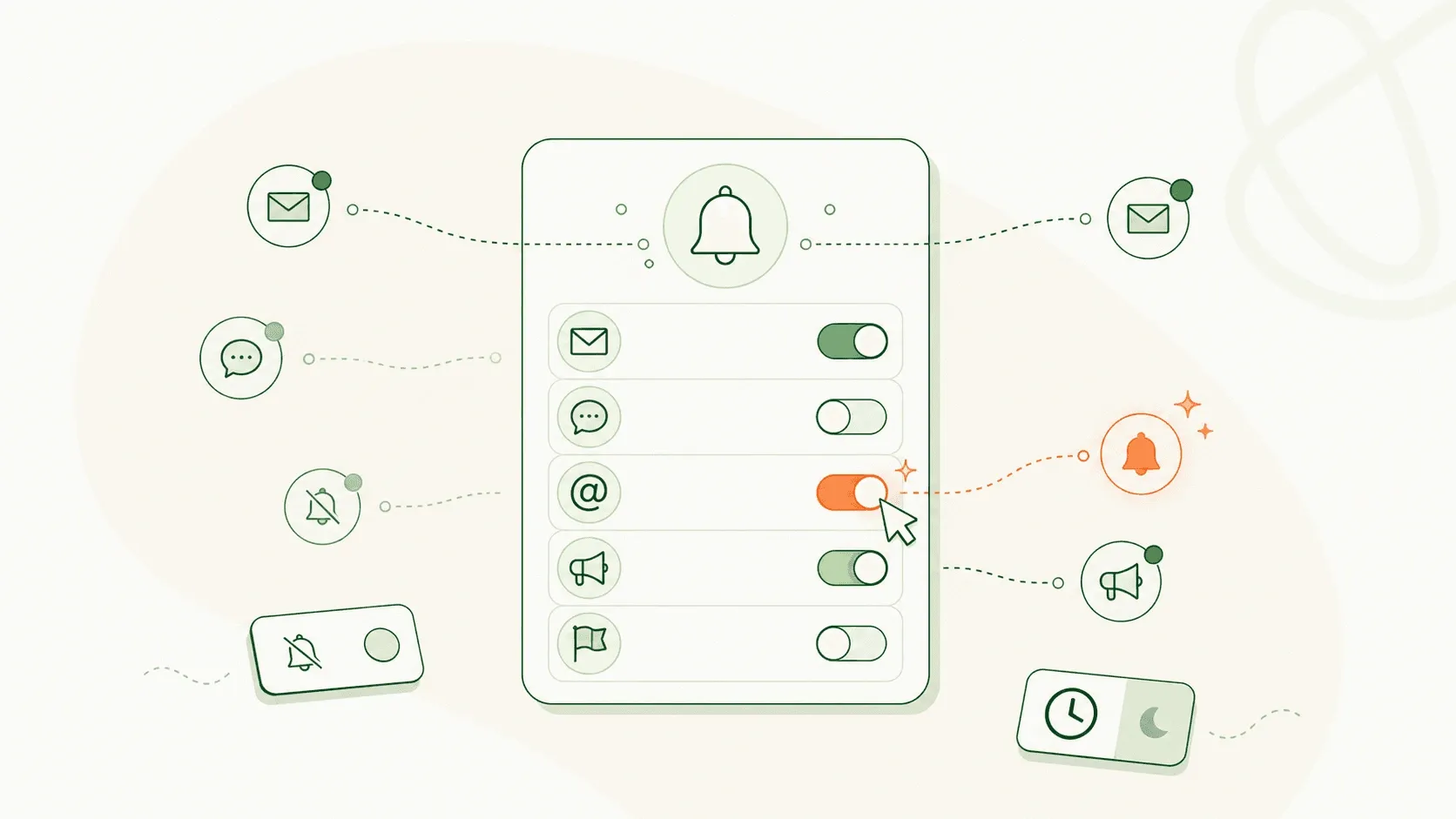
Notification delivery depends on your preferences. Talinty can reach you in three ways:
- In-app notification. Always on. It appears under the bell icon in the top navigation, next to global search and your profile menu.
- Email notification. Optional. Enable email notifications in your profile settings. Talinty sends these to the email address on your profile — the same address you sign in with. By default, Talinty uses in-app notifications only.
- Mobile push. Optional. Available if you have the mobile app installed and have push enabled.
What typically triggers a notification
You are notified when something needs your attention. Examples already described elsewhere in this knowledge base include:
- A teammate mentions you with @ in a team-visible note or scorecard. You receive a notification with a direct link to the candidate and that note.
- A job is submitted for approval and you are the designated approver. A notification fires so you can open the job and approve or request changes.
Mentions only notify on team-visible content. An @ in a private note stays as plain text, and no notification is sent.
A practical tip
If you are new to a workspace, turn on email notifications in your profile settings early. In-app only is quiet until you remember to check the bell.